How to Set Up a Google Business Profile, Step by Step (2026)
Create, verify and fill in a free Google Business Profile so your business shows on Google Maps and local searches, with the mistakes that get profiles suspended.

Nkosinathi Mbokazi, Founder of Bloqpage
November 23, 20268 min read
A Google Business Profile is the free listing that puts your business on Google Maps and in the map results for searches like "plumber near me". To set one up, sign in at business.google.com, add your business name, category, location or service area and contact details, verify it the way Google asks, then fill in every section and start collecting reviews.
It takes about 20 minutes to create, and verification can take from a few minutes to about a week. The steps below follow the order Google asks for them, with what to type at each one.
What do you need before you start?
Have these ready so you can finish in one sitting:
- A Google account you will keep. Use a business email you control rather than a staff member's personal Gmail, so the profile stays yours when people leave.
- Your exact business name, the one on your signage, invoices and letterhead. Nothing added.
- Your address, or the suburbs and towns you travel to if customers do not come to you.
- A phone number customers can call, and your website address. If you do not have a website yet, our guide to building a business website with AI gets one live the same day.
- Your opening hours and ten or so real photos: the outside of your premises, your work, your team.
How do you create a Google Business Profile?
1. Search for your business first
Go to business.google.com and sign in. Search for your business name before creating anything. Google sometimes builds a listing from public information, and a customer may have added you to Maps. If it exists, claim it instead of making a second one. Duplicate listings split your reviews and can get both suspended.
2. Enter your name and main category
Type your business name exactly as customers see it in real life. Then choose the category that describes what your business is, as narrowly as Google allows: "Wedding photographer" rather than "Photographer", "Hair salon" rather than "Beauty". This main category matters more than anything else you fill in for which searches you show up in. You can add up to nine more categories later, but only for things you really are.
3. Choose a shop address or a service area
This is where most small businesses go wrong, so decide carefully:
| Your business | What to choose |
|---|---|
| Customers come to you at a shop, salon or office with signage | Add your address |
| You go to customers and nobody visits your address (plumbers, mobile groomers, cleaners) | Hide your address and add a service area |
| Both: a workshop customers visit and callouts | Show the address and add a service area |
Service areas are towns, suburbs or postal codes, up to 20 of them, and Google asks that they stay within about two hours' drive of your base. If you work from home and nobody visits, hide the address. Google's guidelines are strict on this, and a home address shown on Maps is also a privacy risk.
4. Add your phone number and website
Add the number you answer during business hours and the full address of your website, such as https://pawfectpaws.co.za. Google stopped hosting free websites made from Business Profiles in March 2024, so the link should go to a site you own. A site on your own domain does more for you here than a social media page: every page on it can show up in searches, and the profile and the site point at each other. In Bloqpage you connect the domain under Project Settings, then Custom Domain.
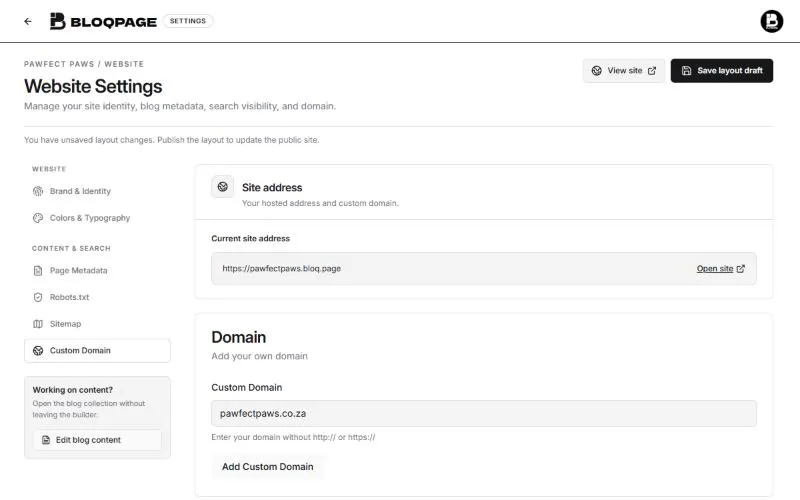 The Custom Domain settings in Bloqpage with a .co.za domain typed in, ready to link from a Google Business Profile
5. Verify that the business is yours
Google decides how you verify, based on your business type and history, and you cannot pick the method. The options you may see:
- Phone call or text with a code.
- Email with a code.
- Video recording: a continuous video taken in the app on your phone, at least 30 seconds, showing where you are, your business name on signage or vehicles, and proof you run the place, such as opening the till or showing your tools. No cuts or editing.
- Live video call with a Google representative, during your business hours.
Google says a recorded video can take up to five business days to review. If it is rejected, read the reason and record again, showing what was missing. Do not create a new profile to start over.
What should you fill in after verifying?
A verified profile with empty sections loses to a complete one. Work through these in your first week:
- Opening hours, including public holidays when you are closed. Wrong hours lead to one-star reviews from people who drove to a locked door.
- Business description, up to 750 characters. Say what you do, where, and for whom, in plain words. No links and no prices: Google does not allow them in the description.
- Photos: your logo, a cover photo and real pictures of your work and premises. Add a few new ones every month.
- Services or products with short descriptions, so people see what you offer before they call.
- Attributes such as wheelchair access or free Wi-Fi, where they are true. Google shows different ones for each category.
Keep the name, address and phone number on the profile exactly the same as on your website footer and your Facebook page. Small differences, like "St" on one and "Street" on another, are fine; a different phone number is not.
Ready to give your profile a website to link to? Start your free 14-day trial, pick a template for your type of business and publish on a free address while you set up your domain.
How do you get Google reviews?
Reviews move you up the map more than almost anything else you control. Google gives you a review link and QR code: open your profile, choose Read reviews, then Get more reviews. The QR code currently only shows on a computer, not in the phone app.
Send the link by WhatsApp or email straight after a job goes well, while the customer is still happy, and print the QR code on invoices or at your till. Reply to every review, including the bad ones, calmly and briefly.
What you must not do: offer a discount, a free item or a lucky draw for reviews, or ask staff and family to post them. Google treats both as fake engagement and can remove the reviews or suspend the profile.
What gets a Google Business Profile suspended?
These are the mistakes we see most with small businesses:
- Keywords in the name. "Pawfect Paws Dog Grooming Durban Best Prices" instead of "Pawfect Paws". It is the fastest way to a suspension.
- A shown home address for a business customers never visit.
- A virtual office or PO box as the address. You need a real place with staff during your hours.
- Two profiles for one business, often because someone made a new one after verification failed.
- Changing the name, address and category all at once soon after verifying. Make big edits one at a time.
If you are suspended, fix the cause first, then appeal through Google's Business Profile help pages. Appeals with proof, such as a utility bill or business registration document in the business name, go further.
A worked example
A made-up example: Pawfect Paws, a mobile dog groomer working from home in Durban North.
- Name: Pawfect Paws
- Main category: Pet groomer
- Address: hidden; service area Durban North, Umhlanga, La Lucia, Glenashley and Morningside
- Hours: Monday to Saturday, 08:00 to 17:00
- Website:
https://pawfectpaws.co.za, with a services and prices page and a WhatsApp button - Description: "Mobile dog grooming that comes to your door in Durban North and Umhlanga. Washes, cuts, nail trims and de-shedding for all breeds, done in our fitted van so your dog stays calm and close to home. Book by WhatsApp or online."
- Verification: a video showing the branded van, the grooming table inside it and the owner opening the booking app
After verifying, the owner sends the review link to the last ten customers on WhatsApp and adds four photos a month of finished grooms.
Common questions
Is a Google Business Profile free?
Yes. Creating, verifying and running the profile costs nothing. Google offers ad credit inside the profile, but you do not need ads to show up on the map.
How long until my business shows on Google Maps?
Usually within days of verification. Showing near the top for busy searches takes longer and depends on your category, distance from the searcher, reviews and how complete the profile is.
Can I have a profile without a shop?
Yes. Set it up as a service-area business with your address hidden, as in step 3.
Do I still need a website?
The profile gets you on the map. A website is where people see your prices and work and book or buy. It also lets you show up for searches the map does not cover, and our free checklist for getting found on Google explains how the two work together. Bloqpage includes a WhatsApp button and booking forms you can switch on in the builder, and you can compare plans when you are ready for your own domain.
Sources
Checked on 20 November 2026. Google changes these pages often, so confirm the steps on your own profile.
- Google: Verify your business on Google
- Google: Verify your business with a video recording
- Google: Guidelines for representing your business on Google
- Google: Manage your service areas
- Google: Edit your Business Profile
- Google: Create a link or QR code to request reviews
- Google: Websites made with Business Profiles